Travel Photography Program
Photography is a fun hobby, but it can also be much more. Before you lies the opportunity to get paid to travel and take photos—combining all the things you love to do into a healthy income.
These photos you take as you explore the world around you can be sold to magazines, through online stock photo agencies, in coffee table books, on cards, as fine-art prints, and so much more!
In fact, you could earn $200-$2,000 in a single week taking photographs in your own backyard, on your family vacations, or anywhere in the world you want to go.
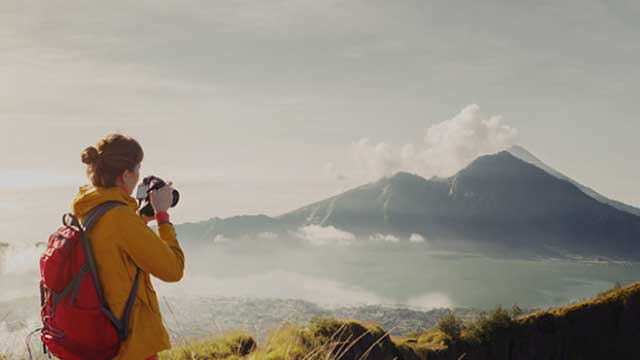
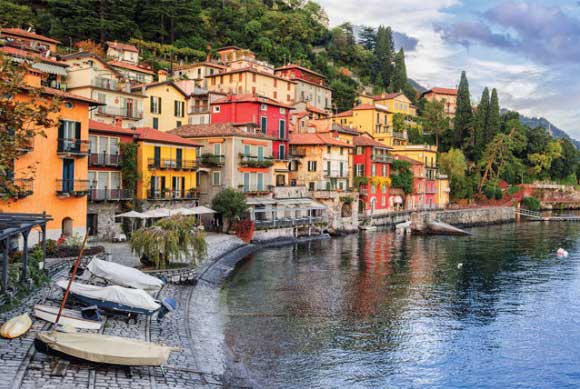
Become a Travel Photographer and Get Paid to Travel the World
You probably have photographs just sitting in your computer…
Many of those photos could be earning money if they were available on a stock photo site or sent to an editor as part of a travel article package.
We regularly hear from readers who are making it happen with the simplest of photos. You don’t need the best equipment and you don’t need years of experience. In fact, you don’t need any experience at all. You just need a little direction on how and where to sell your shots. (That’s what we’re here to help you with.)
What Makes a Good Travel Photographer?
Hint: It’s not your camera. You do need something more than a point-and-shoot to sell your photos in most markets. But it doesn’t have to be a Hasselblad. Camera technology is getting better and better every day, and you can easily start with a consumer-grade SLR or a smaller mirrorless camera.
The top three things that the most successful photographers have in common are:
1
They shoot a lot. Lise Gagne, one of the top photographers in the industry, started with no experience, but she took her camera out and shot photos every day.
There is no faster way to take better photos… and accumulate a portfolio of images that will sell.
2
They start before they’re “ready.” This is a big one. Particularly in stock photography—because stock photography is a time game.
The longer your images are online, collecting sales, the more you’ll make in the end. The absolute best time to start is right now. Don’t wait, because you will never be “ready.”
3
They process their photos. Every successful stock photographer spends at least a few minutes processing each image (and sometimes a few hours, if they’re creating a masterpiece). But you don’t need Photoshop. Lightroom is cheaper, faster, and easier to learn—and it will do everything you need and more. Even just two minutes of processing in Lightroom makes a HUGE difference in whether a buyer chooses your photo over another.
Start today with our program that will introduce you to 12 different photo markets and some simple how-to advice on capturing great images so you can get paid to travel and enjoy a lifestyle of more freedom and flexibility.
If you enjoy the free photography tips included in our regular newsletter, you should check out our free Breakfast Stock Club newsletter as well. It’s filled with weekly tips from our stock photography experts, and will help you get started selling your photos to online stock agencies in no time flat.
Our Photography Program
This program contains all of the secrets, tips, techniques, and strategies you’ll need to take profitable photographs and turn into a pro. You’ll learn:
- The difference between a snapshot and a $5,000 photograph: 5 tricks you can use to bump up sales
- Tips you need for shooting in a variety of locations and situations: night photography, rain, landscapes, pets, fireworks, sports, and more
- Advice on buying the right equipment (if and when you upgrade)
- Photo buying rights and how to copyright your work – so you can make wise decisions that ensure you can resell your photos for years to come.
- How to set your fees and present your work professionally
- How to encourage editors to buy more than one photo at a time
And much, much more, all gleaned from a cadre of successful, globe-trotting photographers.

Travel Photography Popular Articles
- How to Sell Stock Photos Online
- The Power of Processing in Lightroom
- 5 Tips to Successful Hometown Photography
- Smartphone Photography Pays My Way in the Caribbean
- Home Décor Photography Pays My Way In Mexico
- A Guide to Magazine Pay Rates for Photos
- How Simplifying Your Photography Can Help Your Photos
- 4 Steps to My Best-Selling Photo
- I Pay My Way in Thailand With Photography
Testimonials
“I found this group when I was looking for a life change. Their travel photography program caught my attention as I’d always dreamed of doing something creative, but never imagined I could make a living at it. Their entire community is a safe and encouraging place to start, whether you’re a beginner, a hobbyist, or an aspiring professional looking to grow your existing business. Last year I hit the six-figure mark with my photography and I’ve never been happier.”
– Cheryl Bigman